

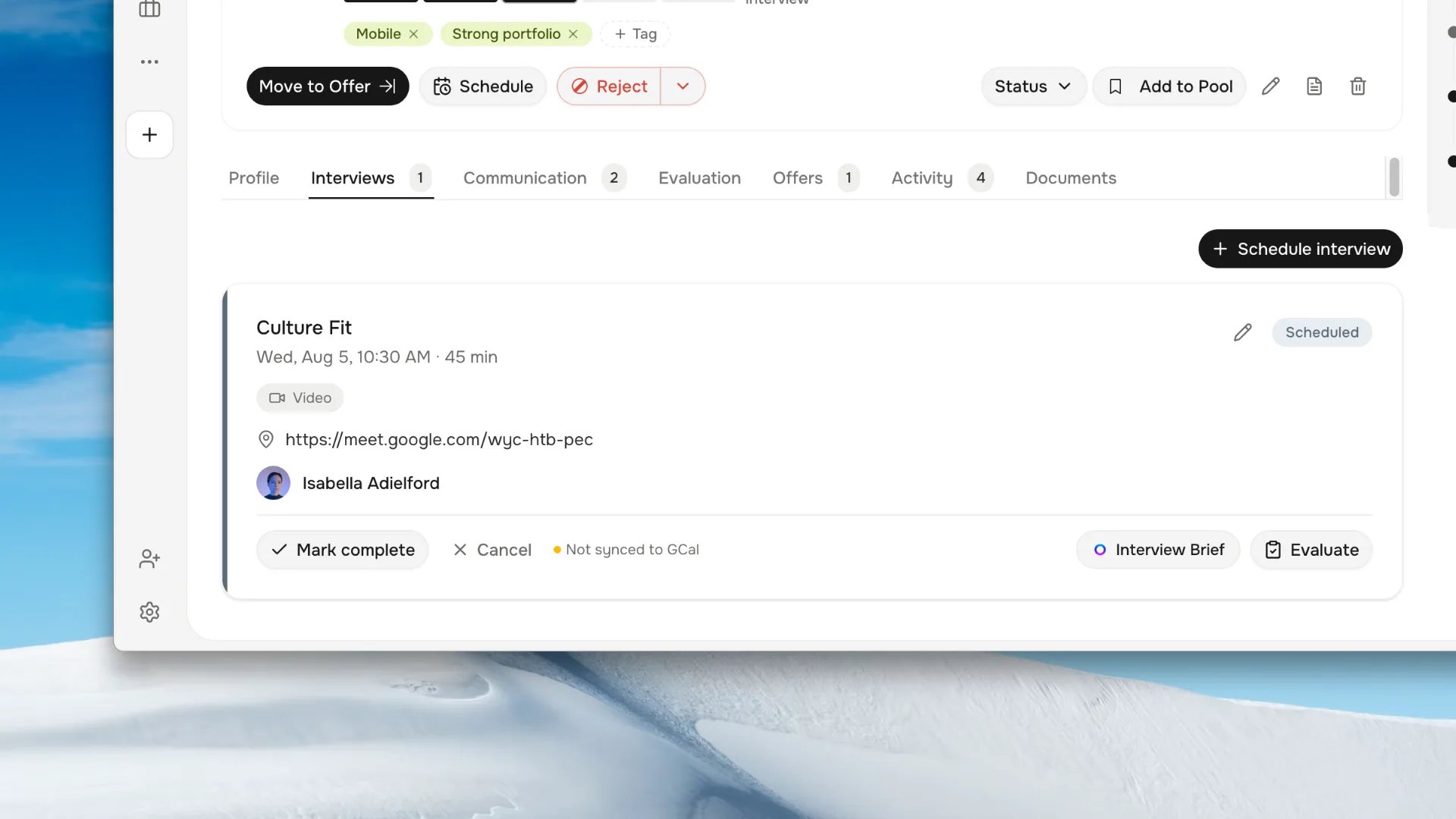
Interview record with scheduling, video, attendee, and evaluation controls.
Before you schedule
Connect the providers you use in Settings → Integrations:- A calendar — Google Calendar or Microsoft Outlook.
- A video provider — Zoom, Teams, Meet, or Jitsi.
Schedule an interview
1
Open the application
From the pipeline or candidate record,
choose Schedule interview.
2
Set the details
Add the attendees, date and time, timezone, and duration. Pick the interview
type or template if your workspace uses them.
3
Choose a video provider
Select a provider to attach a meeting link, or enter a location for an
on-site interview. When several providers are connected, Harly prefers Zoom,
then Teams, then Meet, then Jitsi.
4
Confirm
Save the interview. Harly writes the calendar event, invites attendees, and
adds the video link. The interview appears under Calendars and on the
application.
Reschedule and cancel
Editing or canceling an interview updates the calendar event and the video meeting. If the provider is unavailable, Harly keeps the local change and shows a sync warning you can retry — do not create a second event to work around a warning.Scorecards
A scorecard turns interview feedback into comparable, structured input. Assign a scorecard to an interviewer, and they submit ratings and notes against defined criteria instead of free-form impressions.- Request a scorecard when the interview is completed.
- Compare scorecards side by side before a stage decision.
- Treat scores as one signal; a human owns the hiring decision.
Next steps
Video providers
Connect Zoom, Teams, Meet, or Jitsi.
Offers and signatures
Close the loop after the final interview.