

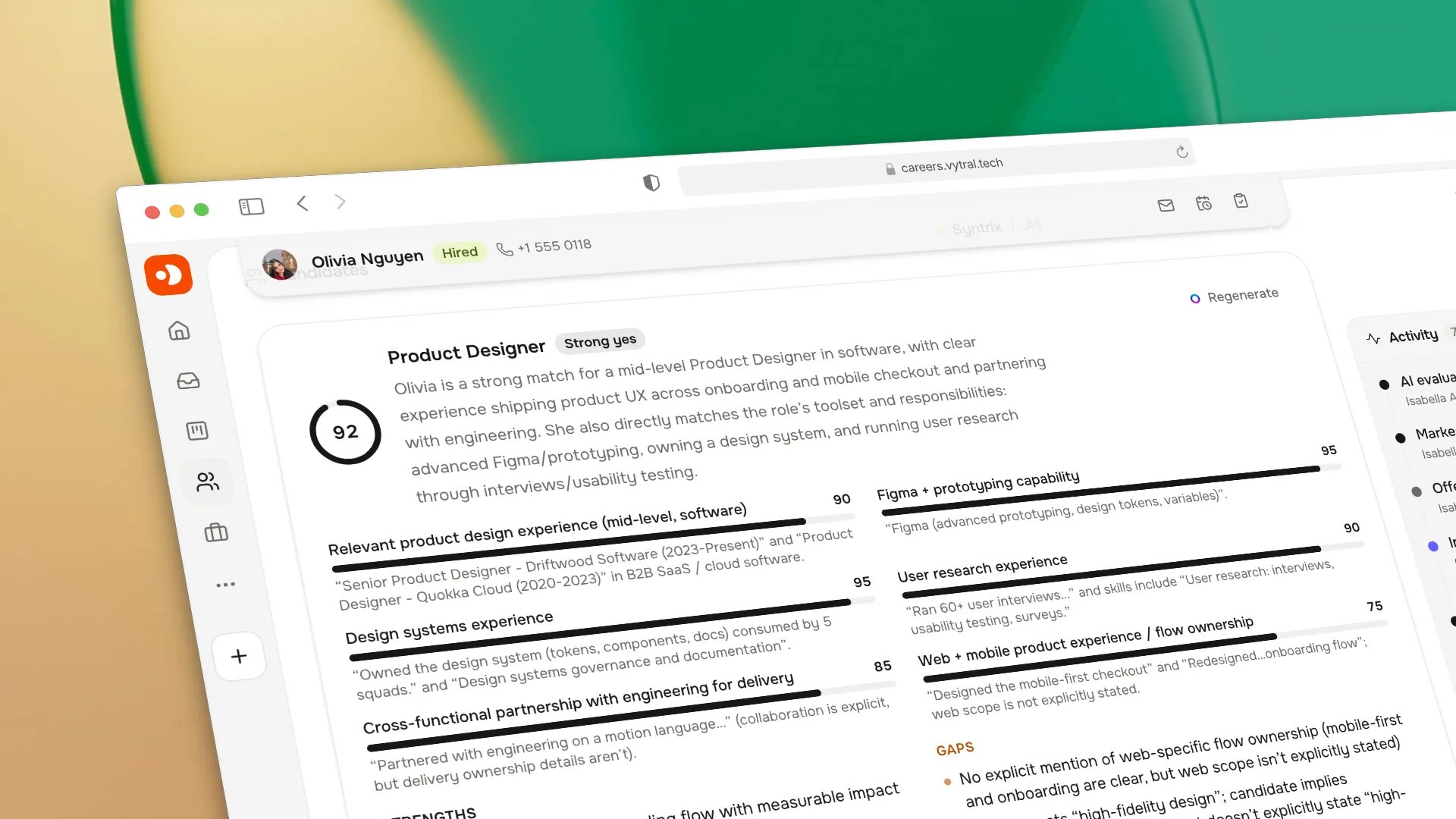
Candidate evaluation with advisory AI matching signals and review context.
Enable AI
1
Choose a provider
Open Settings → AI and select a provider. Harly supports OpenAI,
Anthropic, Google Gemini, xAI, and OpenRouter (as well as custom OpenAI-compatible
endpoints). You bring your own API key — Harly does not proxy through a shared key.
2
Add the API key
Paste the API key from your provider. It is stored encrypted and never
returned to the browser.
3
Enable specific features
Turn on only the features you want. Nothing is sent to the provider until a
feature is both enabled and actively used.
What AI can do
Candidate matching
Rank or summarize how an application fits a job’s requirements, as a starting point for review. The output appears alongside the application — the recruiter reads it and decides. This is a triage signal, not a filter. Use it to prioritize which applications to open first, not to skip reading them.Assisted drafting
Draft candidate messages and job descriptions you review and edit before sending. The draft is editable from the moment it appears; you own the final text. Common uses:- First outreach message after an application
- Rejection email with a reason
- Interview invitation with agenda
Candidate anonymization
Resume anonymization is a workspace setting in Settings → AI. When it is on:- Candidate profiles hide identifying details on screen (names, contact details, and links are blurred until a reviewer reveals them for that candidate). This is a screen mask. The stored records are not changed.
- AI scoring, matching, and interview note summaries receive the candidate under the alias “Candidate”. Names, email addresses, phone numbers, links, social handles, street addresses and location are removed from what is sent. Names are also removed from the candidate’s résumé, headline, application answers and interview notes.
- The chat assistant also receives the page you are on as “Candidate profile” or “Workspace section”, never the candidate’s name.
- The chat assistant’s tool results get the same treatment. Each candidate is shown as “Candidate” with a short code that stays the same for that candidate within one conversation, and ids are kept so the assistant can still act on the right record. Names, email addresses, phone numbers, links, avatars, addresses, locations and mail-header addresses are removed from what the model receives. Names in free text are masked wherever a known candidate’s name appears. A candidate is recognized when the result or the tool call names them by id, links to their profile, or gives their email address. A name that appears with no such reference is not masked. A single-word name is masked only when it starts with a capital letter and is not followed by a day number, so “May 12” stays a date. If redaction fails, the assistant receives a withheld notice instead of the result. If a tool call fails, the assistant receives a generic failure notice instead of the error message. The screen still shows the results and errors.
- Features that cannot work without knowing who the candidate is are paused, and the screen says so: duplicate detection, email drafting, mailbox assistance, AI resume autofill on the apply form, AI resume summaries on upload, and scorecard comment refinement. The standard parser or the manual path is used instead.
Chat
Ask questions about candidates, jobs, pipeline health, or automations. The assistant operates within your active workspace using real-time tools governed by role-based permissions. When opened alongside a specific candidate or job, it automatically incorporates that item’s context while respecting your tenant boundaries.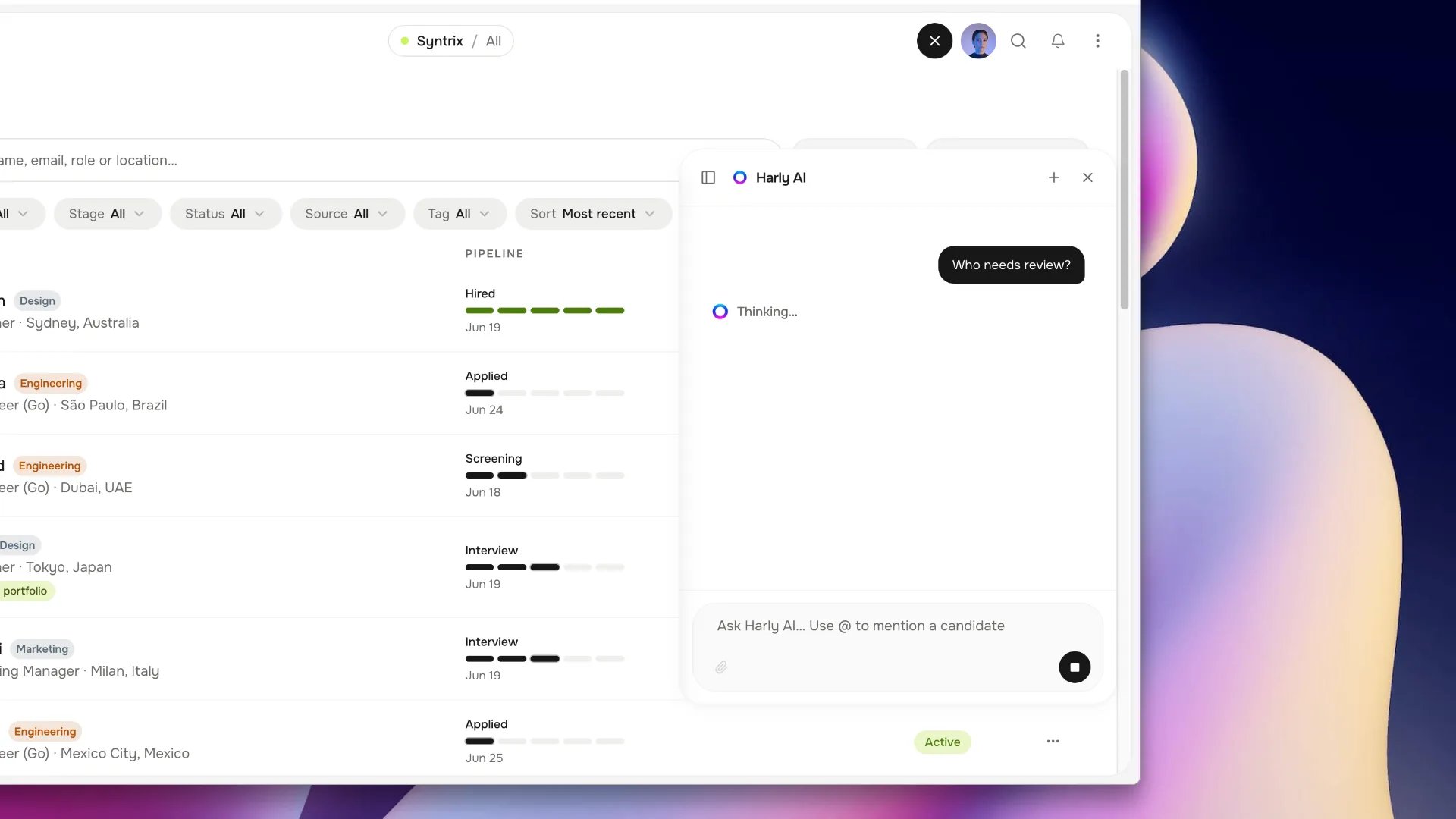
Harly AI assistant alongside the candidate pipeline.
- “Summarize this candidate’s relevant experience.”
- “What questions has this candidate not answered yet?”
Automation authoring
Harly AI can propose complete workflows in the Automations Builder. It can discover the enabled action and integration catalog, resolve jobs, stages, templates, and other workspace resources, preserve branches, delays, waits, and approval outcomes, then simulate the proposal before anything is applied. The proposal shows a graph diff and branch-coverage report and uses a revision/content-hash check when the owner applies it. For example, an owner can ask forapplication.created → ai_score → ai.score < 50 → reject,
send a specific email, and queue durable candidate-data erasure, with an
alternative manual-review branch for scores of 50 or more.
The complete tool, permission, integration, and simulation contract is
published in the generated automation capability matrix.
CI verifies that matrix against the runtime manifests and legacy registry so
the documentation cannot drift from what Harly can actually execute.
What leaves your server
This table lists what each AI feature sends to your configured provider, and what changes when candidate anonymization is on. Harly sends nothing to a provider for a feature you have not enabled or used.
Anonymization applies to the scoring, matching, note-summary and chat-tool-result
paths above. The chat assistant’s conversation itself is not redacted: a name or
contact detail you type is sent as typed. The interview brief is not yet covered.
Treat it as receiving identifying details until this page says otherwise.
What is sent to a provider is limited to the feature you enabled. Candidate
data is personal data, so:
- Choose a provider with a data processing agreement that fits your obligations.
- Tell candidates if AI is part of your review process.
- Review the AI usage log in Settings → AI → Usage periodically.
- Keep a documented override path for every material recommendation.
Do not place provider credentials, private notes, or unnecessary candidate
data into prompts. If you configure a custom system prompt, treat it as
infrastructure code — review it before enabling.
Turn off AI
Disable individual features in Settings → AI without removing the provider. Remove the API key entirely to disable all AI features and prevent any data from reaching the provider. Disabling AI does not affect any other part of Harly. All records, pipelines, interviews, and offers remain unchanged.Next steps
Tasks and scorecards
Structured feedback that AI can help refine.
Privacy
Data obligations to understand before enabling AI.
Inbox and email
Where AI drafts land before you send them.