

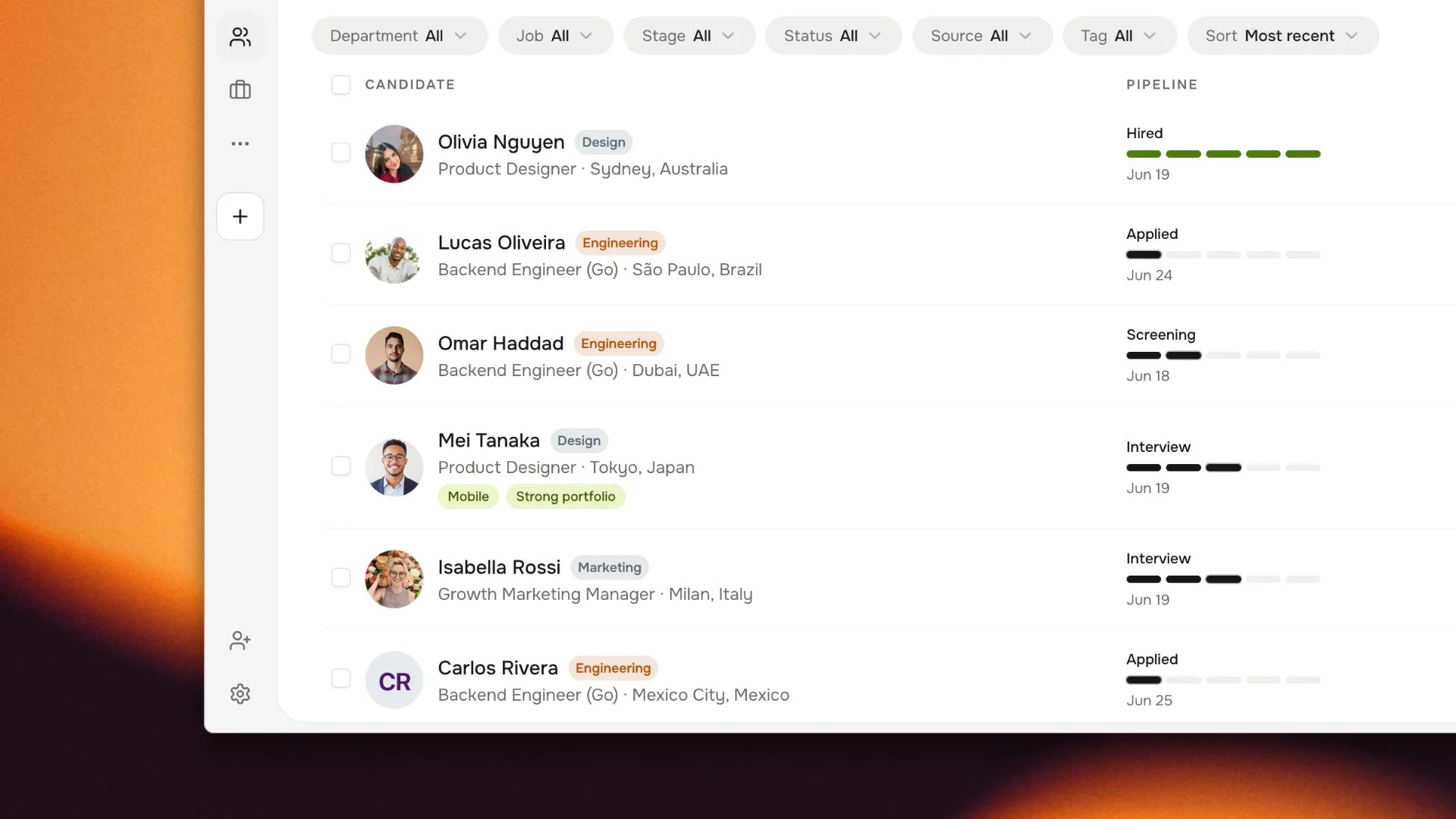
Candidate list and pipeline stages with synthetic demo data.
The candidate record
Open a candidate to see their profile, resume, application answers, tags, notes, interviews, documents, email thread, and a full activity timeline. Read this before you change a stage — the timeline shows who did what and when.- Tags group candidates across jobs (for example
referralorsenior). - Notes record a decision and the next owner. Prefer a note over a chat message so the reasoning stays on the record.
- Activity is append-only and feeds the audit trail.
Move an application
From the pipeline, drag an application to the next stage, or open it and choose a stage. Each move is recorded on the timeline and can trigger an automation such as a notification or a task. Archiving a stage merges its applications into another stage with the same outcome, and its past moves stay in each candidate’s timeline. No candidate’s status changes because of an archive.1
Work from the oldest actionable application
Filter by owner, stage, department, or region. Avoid exporting to a personal
spreadsheet — the pipeline is the shared source of truth.
2
Record the decision
Add a note explaining why the application advances or stops, and name the
next owner.
3
Advance, reject, or request more
Move to the next stage, reject with a reason, or request a document or
scorecard before deciding.
Customize your pipeline
Stages belong to each job. Select Edit stages on the pipeline to add, rename, recolor, reorder, or archive them. Archiving a stage moves its candidates to another stage of the same kind, and their history stays. The full rules are in Jobs.Reject and hire
Reject with a reason so reporting and candidate communication stay consistent. Rejection is a per-application outcome; a candidate rejected for one role can still be active for another. Hiring an application marks the role filled for that candidate and closes the loop for the hiring team. Confirm any signed offer from the document record — not from an email or screenshot — before you mark a hire final.Bulk actions and search
Select multiple applications to move or tag them together. Global search finds candidates by name, email, role, or location. Bulk moves still record one timeline entry per application, so history stays complete.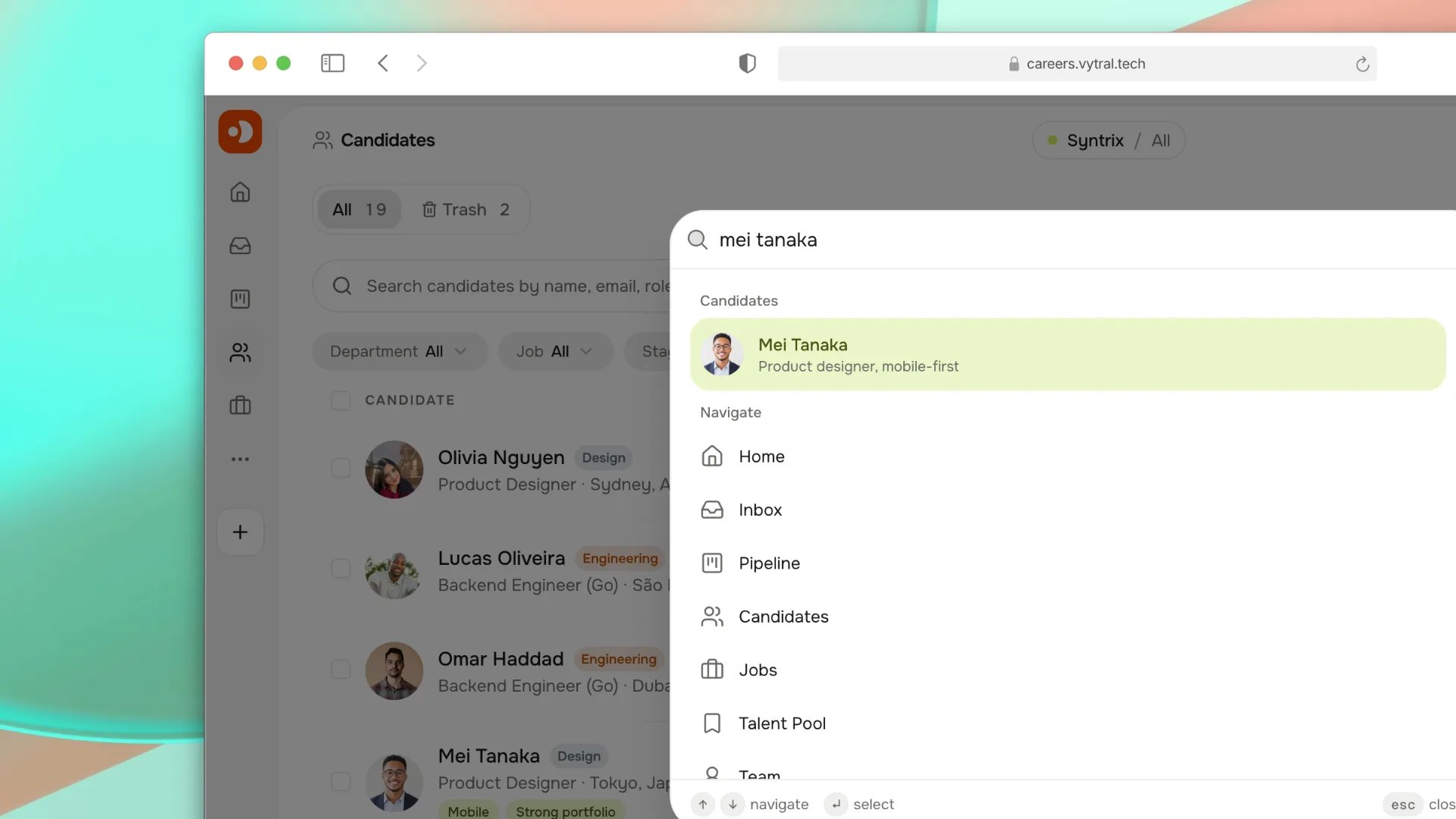
Global candidate search and navigation across the recruiting workspace.
Talent pool
Candidates you want to revisit later can be kept in the talent pool rather than left in a closed job. Add them with a tag and a note describing why, and respect the retention period recorded in your privacy settings.Import candidates
Owners and administrators can import candidates from a CSV file or a supported ATS from Candidates → Import candidates. Select the destination job before starting the import. For an ATS import, create the provider credential first, then choose the ATS, paste the credential, and select its import action. The credential is used for that import and is not saved by Harly. Profiles missing a first name, last name, or email are skipped. See the detailed guides for JOIN.com, Greenhouse, Workable, Ashby, and Lever for provider permissions, field mapping, limits, and document limitations.Next steps
Interviews and scheduling
Schedule the next conversation.
Inbox and email
Message the candidate from the record.