

- Installation credentials live in the server environment and enable an OAuth or API client.
- Workspace connections are created by an owner or administrator in Settings → Integrations and are stored encrypted in PostgreSQL.
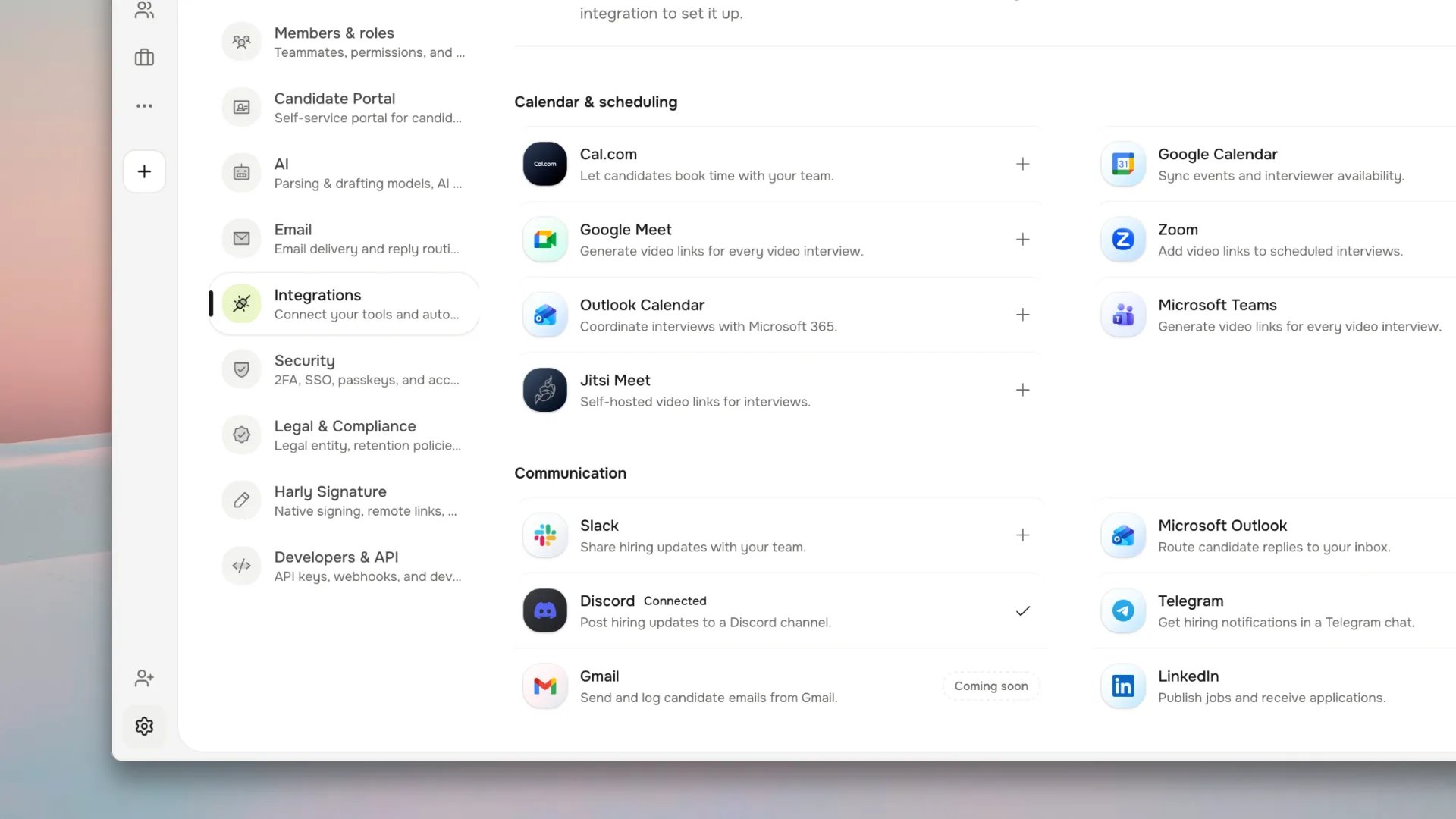
Integration settings for calendars, video, communication, and workspace tools.
Integration map
Connection lifecycle
1
Create provider credentials
Create the provider application with the redirect URI and scopes shown in
the provider guide. Keep the client secret server-side, never in source
control or client-facing code.
2
Add installation variables
Add the values to the web process’s secret manager and restart Harly.
Confirm the integration card in Settings → Integrations no longer
reports missing credentials.
3
Connect the workspace
Open Settings → Integrations, connect the account, select a calendar or
channel where requested, and run the provider test.
4
Exercise failure recovery
Disconnect and reconnect a test account, verify a sample event or message,
and record the owner for future token rotation.
Integration-specific guides
Resend, SMTP, inbound replies, and mailboxes.
Google Calendar and Meet
OAuth setup, callback registration, and common errors.
Microsoft Outlook and Teams
Entra app registration and calendar sync.
Video providers
Zoom, Teams, Meet, and Jitsi.
Notifications
Slack, Discord, and Telegram.
Signatures
Harly Sign and DocuSeal.
Storage
Local volume and S3-compatible providers.
JOIN.com candidate import
Import candidate applications from JOIN with a one-time API token.
Greenhouse import
Import candidate profiles with a scoped Harvest API key.
Workable import
Import profiles with a Workable token and the r_candidates scope.
Ashby import
Import candidate profiles with Ashby endpoint permissions.
Lever import
Import Lever opportunities with read-only API access.
Troubleshooting pattern
- Open Settings → Integrations and check the provider status indicator.
- Verify the public origin and exact redirect URI match what is registered in the provider.
- Confirm the web process received the current secret variables after the last restart.
- Reconnect the workspace account if the provider returned
invalid_grant. - Inspect the application or interview warning and retry the sync from its record rather than creating a duplicate external event.